
Booking A Casual Session
Six steps
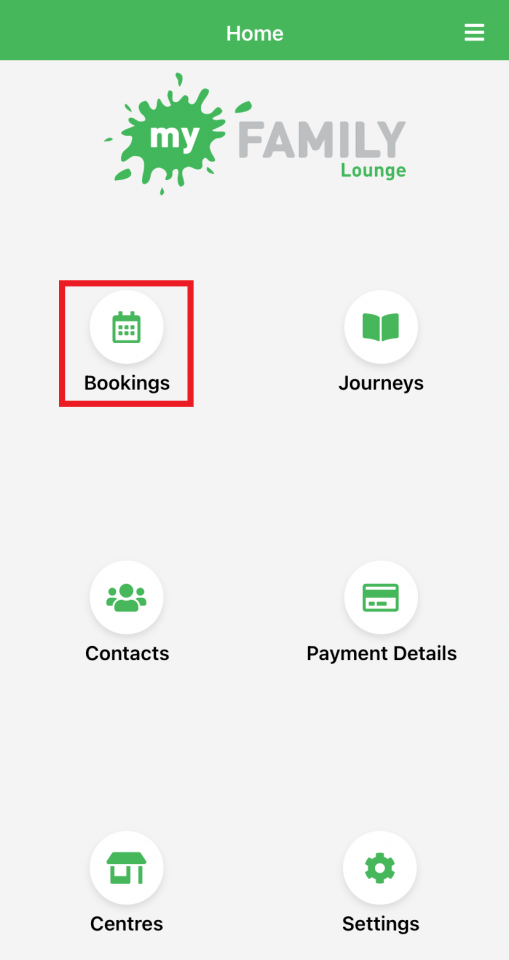
Step 1 – Click on Bookings
Click on Bookings.
Step 2 – Select Room
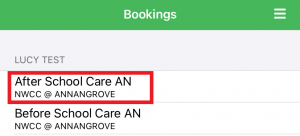
Then “Select Room”.
E.g. After School Care or Before School Care.
Step 3 – Select an Available Day
Click on an available day on the calendar.
Available days are indicated in
Green.
Step 4 – Check Details and Create Booking
Check the details of the casual day and read the Terms and Conditions.
Click “Create Booking”.
Step 5 – Confirm Your Booking
A pop-up will display confirming the booking has been successfully created.
Press OK.
Step 6 – Booking Confirmation
The selected day will change from available (green) to Casual (purple).
The Bookings Team will receive a notification
of this booking.