
Marking Your Child As Absent
Step 1 – Log In to My Family Lounge
Click the My Family Lounge app and log in.

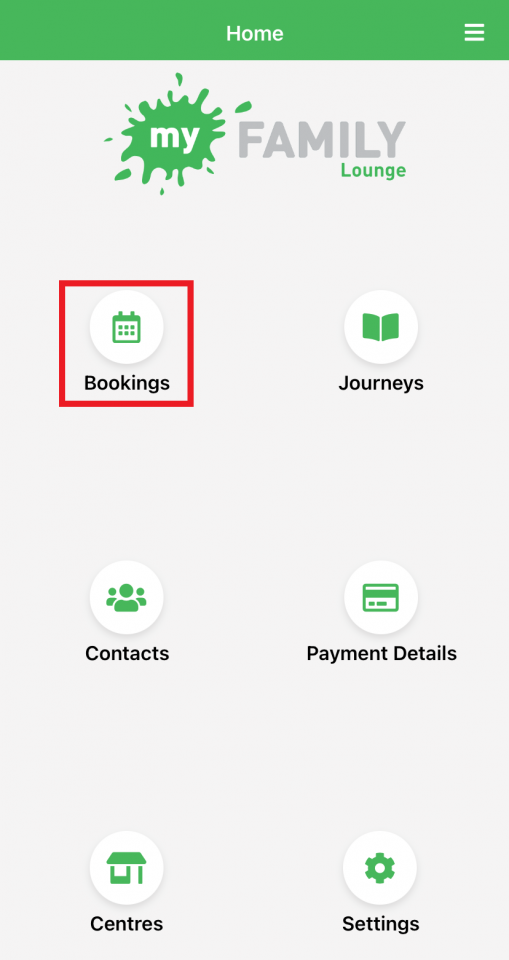
Step 2 – Click on Bookings
Click on Bookings.
Step 3 – Select Your Service and Room
Select Main Service. This applies if your child attends more than one service.
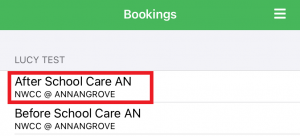
Then “Select Room”.
E.g. After School Care or Before School Care.
Step 4 – Select Your Child's Booking Day
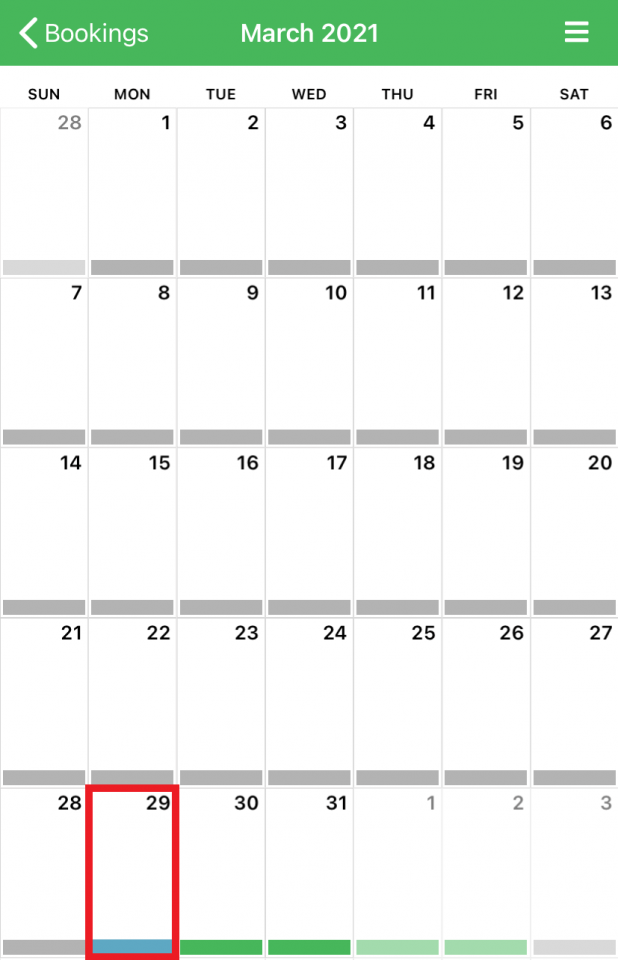
Click on your child's permanent booking day.
Step 5 – Mark Your Child as Absent
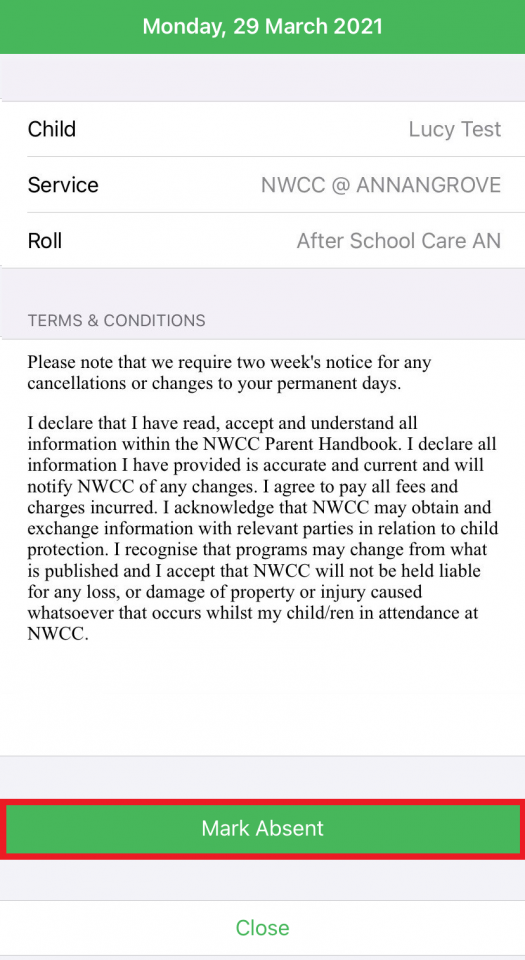
Check the details of the day and click “Mark Absent”.
Step 6 – Acknowledge the Confirmation
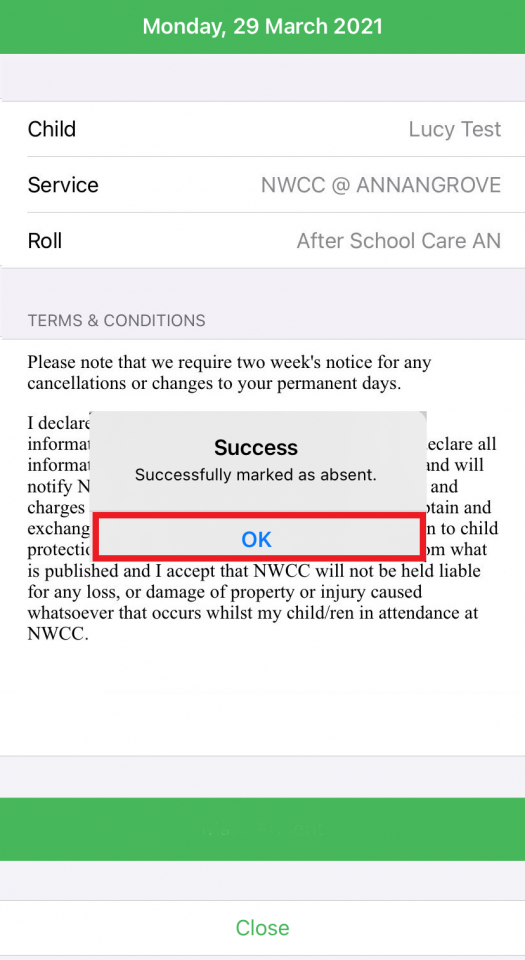
A pop-up will display advising the day has been successfully marked as absent.
Click OK.
Step 7 – Check the Calendar
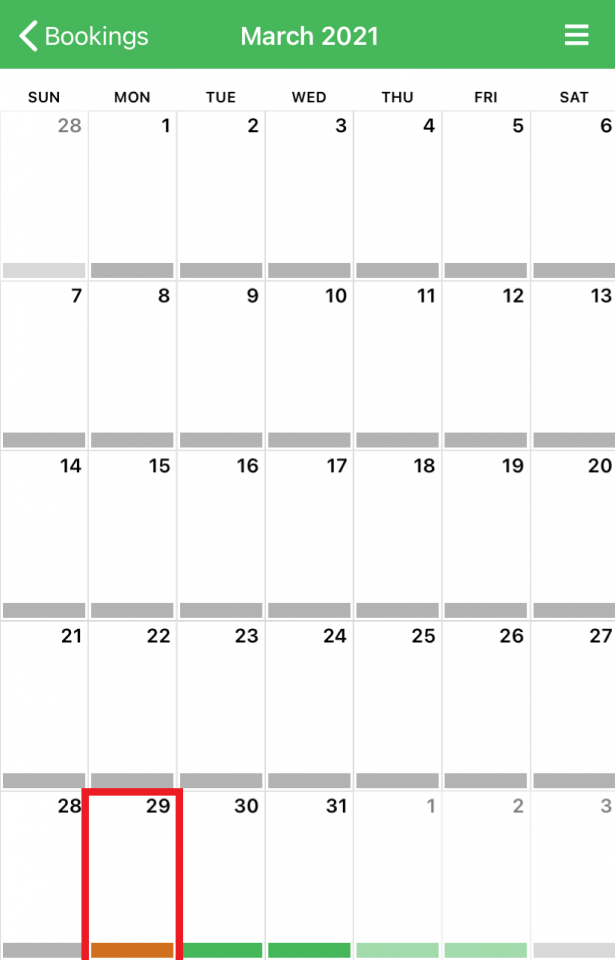
There is no separate confirmation, but the selected day will change from permanent booking (blue) to absent (orange) if you have completed the process correctly.
For extended absences: If your child is absent for an extended period of time, you will need to select each day and mark them as absent individually.