
Enrol for Vacation Care
Step 1 – Login to Existing Family Account
Login to your existing family account.
Login to My Family LoungeStep 2 – View Vacation Care Program + Terms & Conditions
View the Vacation Care Program + Terms & Conditions before making your booking.
Step 3 – Add a Service Location
Add a Service Location to your enrolment.
Click here if you have never attended either of our services before.
Step 4 – Add a Booking
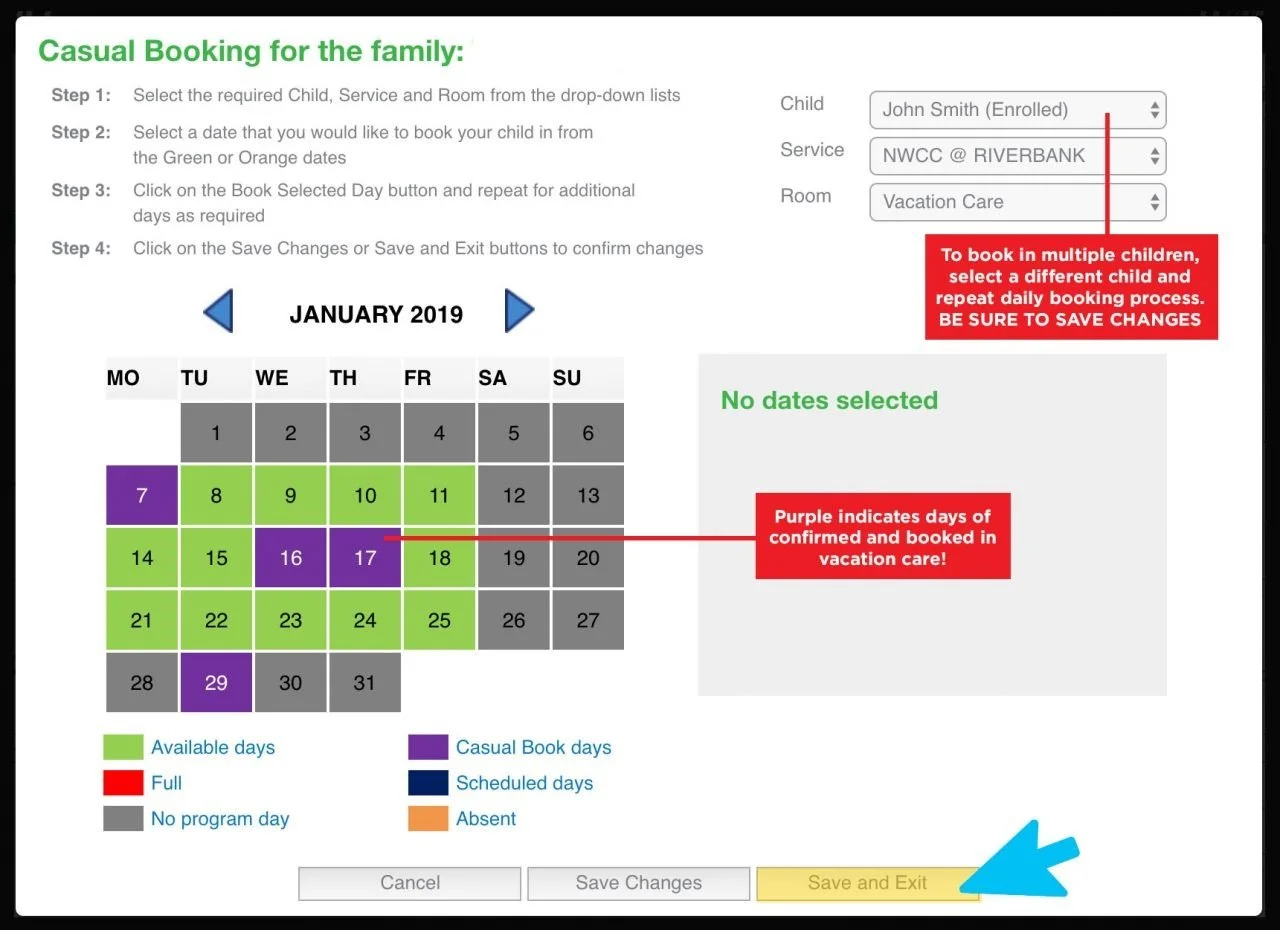
Bookings are made as “Casual Bookings” in our system. Scroll down and click on “Add Casual Booking” to select the days you would like care for the school holiday period.

Step 5 – Select Children and Centre Location
-
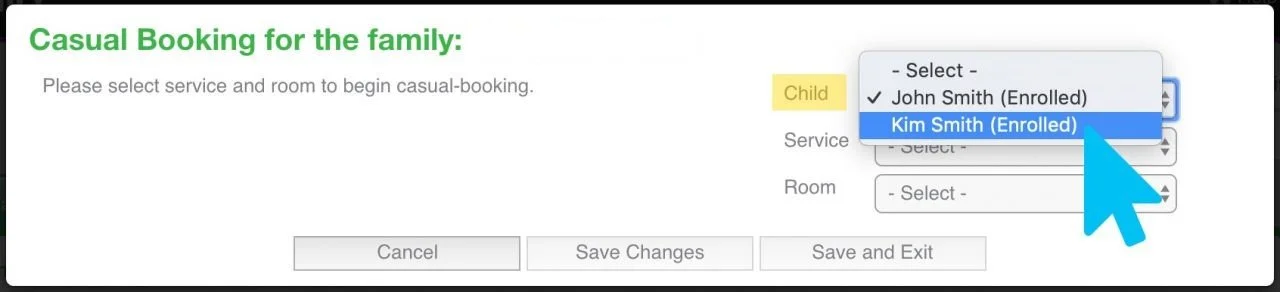
Select attending child.
You are unable to bulk book multiple children;
you must enter separately.
-
Select service location.
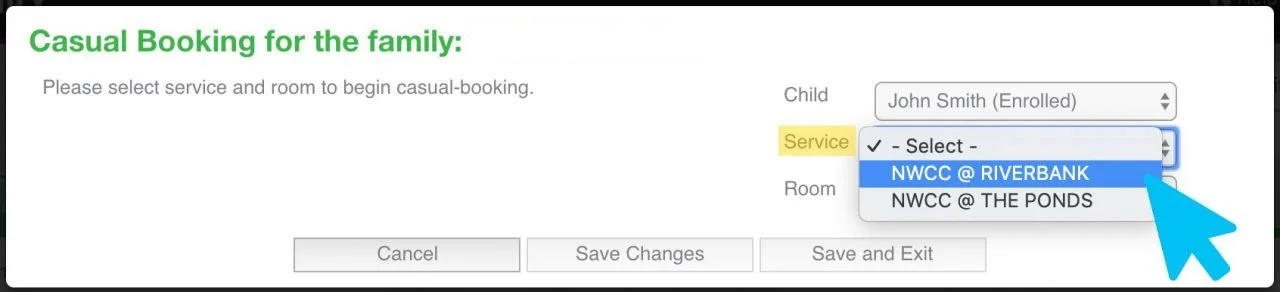
Can't see the service you wish to attend? Click here to find out how to add a service to your enrolment.
-
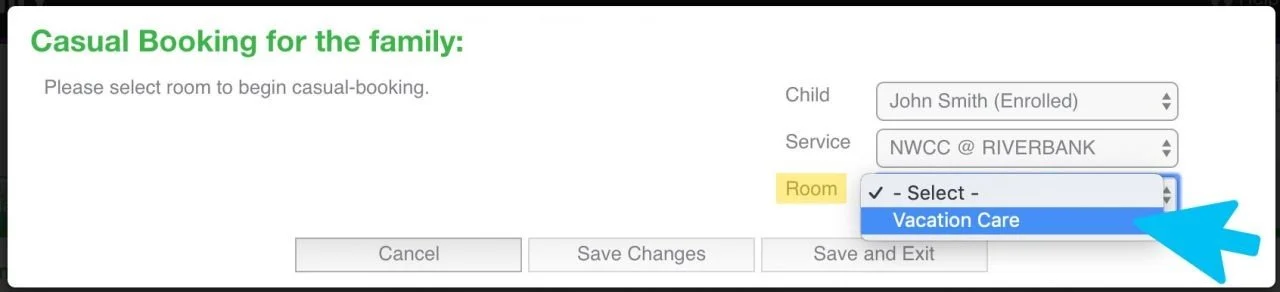
Select Room, e.g. Vacation Care.
Step 6 – Booking Days
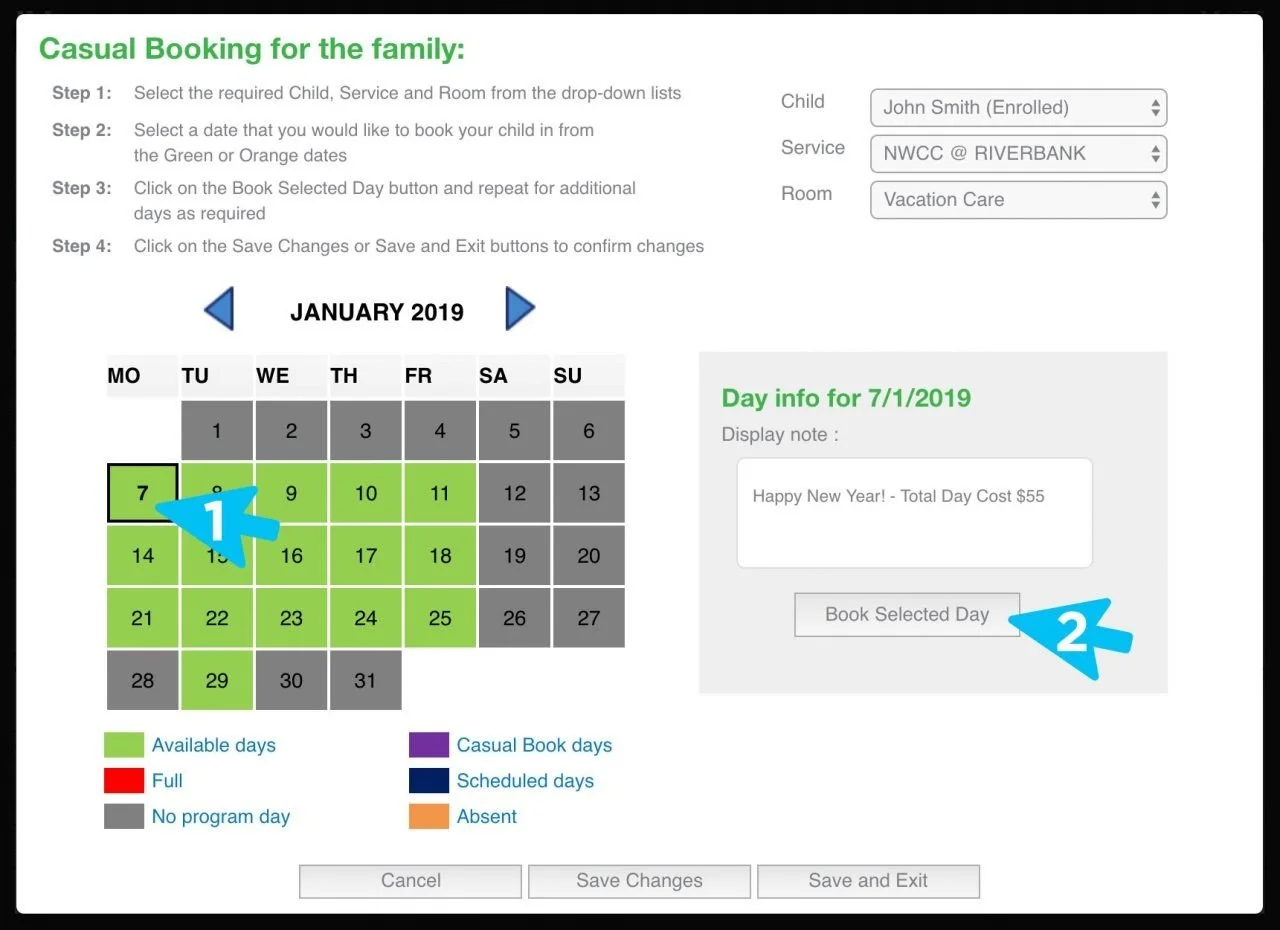
Simply select a day you would like to attend on the calendar. The fees and activity for that day will appear to the right under the Day Info. To confirm your booking for that day, click on “Book Selected Day”.
Step 7 – Adding Additional Days and Confirming
Continue to select additional days you would like to attend on the calendar and click on “Book Selected Day”. You are unable to bulk book numerous days; you must enter separately.
To book in multiple children, select a different child and repeat the daily booking process. BE SURE TO SAVE CHANGES as you move between each child's booking.
Once all dates you require are Purple, click “Save and Exit” to confirm.
Step 8 – Reviewing Your Booking or Making Changes
Once saved, your family dashboard will reload. You can review your bookings for care under “Casual Bookings”.
To review exact days or make cancellations or adjustments to your bookings, click “Add Casual Booking”.
If you are having any difficulties or have questions, please contact the Bookings Team by email bookings@nwcc.com.au or phone (02) 8678 0279.